The best way to transfer large files from one PC to another is a direct, wired connection between the two machines (Ethernet through your router), using software that can pause and resume and that verifies every file after copying. If the PCs can't share a network, a fast external drive is the next best option, ideally with a tool that can split the job across several drives. Plain drag-and-drop is the method most likely to fail on a big content library.
If you're a creator moving years of shoots, edits and exports to a new editing PC, the size alone causes problems: copies stall overnight, Windows asks what to do with duplicates, and you never quite know whether everything arrived. This guide explains your options and how to make sure nothing goes missing.
Why big content libraries break drag-and-drop copies
Copying a few folders in File Explorer is fine. Copying several terabytes of 4K clips, RAW photos and project files is a different job. The common failure points are:
- No real resume. If the copy stops at 70%, you often start again or guess which files made it.
- Conflict prompts that halt the job while you're asleep.
- No verification. A file that copied with errors looks identical in the folder until you try to edit it.
- File system limits. Drives formatted as FAT32 can't store any single file larger than 4 GB, which rules out many long video recordings.
- Long paths and odd file names from editing software exports.
Ethernet, Wi-Fi or external hard drive: which is best?
| Method | Strengths | Weaknesses |
|---|---|---|
| Ethernet (both PCs wired to the same router or switch) | Stable, no extra drives needed, one continuous job | Both PCs must be in the same place; slower than a fast SSD on older routers |
| Wi-Fi | No cables | Speed varies with distance and interference; worst choice for terabytes |
| External hard drive or SSD | Works anywhere, gives you a spare copy | Two copies (on, then off), capacity limits, must be NTFS or exFAT for large files |
| Cloud upload and download | Off-site copy | Very slow for large libraries, depends on your upload speed |
As a rough, hypothetical example: Gigabit Ethernet has a theoretical ceiling of about 125 megabytes per second. At a realistic 100 MB/s, a 2 TB library takes around five and a half hours. Wi-Fi in a busy flat could easily take several times longer. That's why a resumable, overnight-safe method matters more than the cable itself.
What to check before you start
- Free space: confirm the new PC has more space than the library, with room to spare for new projects.
- OneDrive status: files marked as online-only aren't really on the old PC. Either download them first or plan to re-sync them on the new machine.
- Folder structure: decide where the library should live on the new PC (for example a second internal drive) before you copy.
- Old drives: if the library is spread across several internal drives, list them so nothing is left behind.
- Your editing software: programs don't move with your files, so download installers and find your licence details now.
Transferring a content library with direct PC-to-PC software
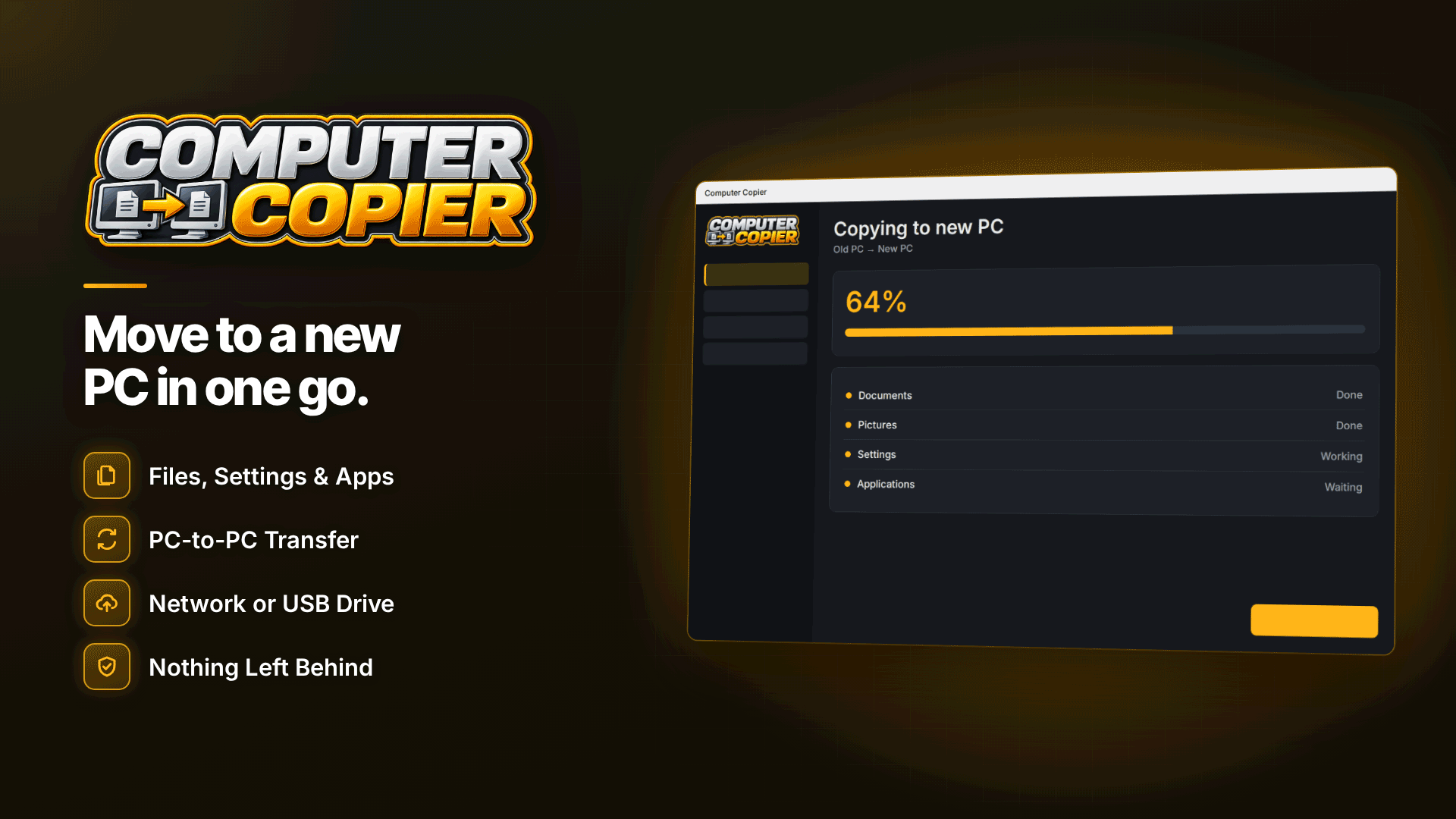
Dedicated transfer software solves most of the problems above. Computer Copier moves files, user folders and selected settings from an old Windows PC to a new one, and it was built with large, interruptible transfers in mind. It runs on 64-bit Windows 10 and 11 and is installed on both PCs.
Over the network
Pair the two PCs with a 6-digit code and send the transfer over Wi-Fi or Ethernet. There's no cloud and no account, and the transfer doesn't use the internet, so your unreleased content never leaves your home network. You can pick whole drives or chosen folders as well as the usual Videos, Pictures and Documents folders, and it finds user folders you've moved to another drive.
By USB, across several drives
If the PCs can't be networked, transfer by USB or external drive. The transfer can span multiple drives, so a library bigger than any single drive you own still fits. You can also save the transfer file to a folder such as a NAS.
Pause, resume and verification
You can pause, resume or stop at any time. It resumes where it left off, skips files already copied and continues partly copied network files. By default every file is verified against the original by checksum, and any failures are listed with reasons. The old PC is only read, never changed, so your originals stay safe throughout.
Duplicates and conflicts
Identical files are skipped, and conflicting files are kept as copies by default, so nothing is silently overwritten. You can choose to replace them (with undo) or skip them instead.
A realistic weekend plan for moving your library
Here's how a hypothetical creator with a 3 TB archive might schedule the move without missing a posting day:
- Friday evening: schedule the weekend's posts in advance, then wire both PCs to the router and start the transfer overnight.
- Saturday morning: check progress; if the job paused, resume it rather than starting again.
- Saturday afternoon: reinstall your editor and plug-ins on the new PC while the copy finishes.
- Sunday: read the report, open recent projects and fix any failed files by copying them again.
- The following fortnight: edit and post from the new PC, keeping the old one untouched as a fallback.
How do you verify files after copying?
Whatever method you use, check before you delete anything from the old machine:
- Read the transfer report. The report lists what moved and any failures with reasons, and you can save it as PDF. Keep it with your records.
- Spot-check projects. Open three or four recent edit projects and confirm the media links resolve.
- Compare totals. Check file counts and folder sizes in File Explorer properties on both PCs.
- Play long files to the end. Truncated video files often only show problems near the end.
What won't move, and how to handle it
- Online-only OneDrive files are skipped, along with thumbnails and temporary files by default.
- Installed programs such as your editor, photo tools and plug-ins must be reinstalled. A program checklist lists what was installed on the old PC with download links and licence-key reminders.
- Licence keys aren't transferred, so note them before you start.
- Windows itself and drivers aren't copied; the new PC keeps its own.
Once the library is across, protect it properly. Our guides to backing up as a content creator and to watermarking your content are good next reads.
Frequently asked questions
Why is file transfer between computers so slow?
Wi-Fi, older routers, slow USB ports and many small files all cut speed. Use wired Ethernet or a USB 3 drive, and copy overnight with software that resumes if interrupted.
Can I transfer photos to a new computer without the cloud?
Yes. A direct network transfer or an external drive keeps everything local, which is also better for privacy if your library includes unreleased content.
Should I keep the old PC after transferring?
Keep it untouched until you've checked the report, opened your projects and posted from the new machine for a couple of weeks. Only then wipe it.
Next steps
A new editing PC is a good moment to review your kit; our equipment starter kit covers storage and hardware, and the guide to running a creator business helps you treat your library as a business asset. When you're ready to move, install Computer Copier on both PCs and start the transfer over a wired connection.