To fix a "Preparing Automatic Repair" loop, first copy your unsaved shoots and documents to a USB drive, then work through the likely causes in order: an unfinished Windows update, a bad driver, or damaged startup files. You can roll back the update or start in safe mode from Windows' own recovery menu, or use a boot repair tool that stops the loop for you, without reinstalling Windows.
A looping editing PC is stressful when this week's content is sitting on it. The good news is that the loop is usually caused by software, not a dead drive, and your files are normally still there. Here is a calm order of work.
Why does Windows get stuck on automatic repair?
Windows watches its own start-up. According to Microsoft's documentation, it launches the Windows Recovery Environment automatically after two consecutive failed attempts to start, or after repeated unexpected shutdowns shortly after booting. It then runs Automatic Repair. If the repair can't fix the underlying problem, the PC restarts, fails again and comes back to "Preparing Automatic Repair", sometimes followed by a black screen after the Windows logo.
The usual culprits on a creator's PC are:
- A Windows update that didn't finish, often because a laptop lid was closed or the battery ran out mid-install.
- A new or updated driver, for example for a capture card, webcam, graphics card or audio interface.
- Damaged startup files after a crash or power cut.
- A failing drive, which shows up as very slow loading, clicking noises or the drive disappearing.
Step one: copy files from a PC that won't boot
Before you try any fix, protect anything that exists only on this machine: raw shoots, edited clips waiting to be posted, release forms and your content calendar. Most fixes are safe, but "most" isn't good enough for content you can't reshoot.
You have three realistic options:
- Use a boot repair tool's file copy feature from its rescue USB (covered below).
- Remove the drive and read it in another PC using a USB enclosure or adapter, if you're comfortable doing so.
- Use the Command Prompt in recovery to copy folders to a USB drive. This works but is fiddly with long folder paths.
Tip: if your PC uses BitLocker or device encryption, you may be asked for the recovery key before you can reach your files. Look it up in the Microsoft account you used to set up the PC before you begin.
What if the PC won't boot after a Windows update?
If the loop started straight after an update, rolling it back is the most direct fix. From the blue recovery screen, choose Advanced options > Troubleshoot > Advanced options > Uninstall Updates, then remove the latest quality update first. If that doesn't help, try removing the latest feature update. System Restore in the same menu is another option if restore points were enabled.
Once Windows starts again, let the update reinstall while the PC is plugged in and you aren't in the middle of an edit.
How do you start Windows in safe mode from recovery?
If you suspect a driver, safe mode loads Windows with a minimal set of drivers so you can remove the troublemaker:
- From recovery, go to Troubleshoot > Advanced options > Startup Settings and choose Restart.
- When the list appears, press 4 or F4 for safe mode (or 5 or F5 for safe mode with networking).
- Open Device Manager, find the recently updated device, and roll back or uninstall its driver.
- Restart normally and check whether the loop has gone.
Capture cards and webcam utilities are common offenders because they install low-level drivers that load early in start-up.
Stopping the loop with a boot repair tool
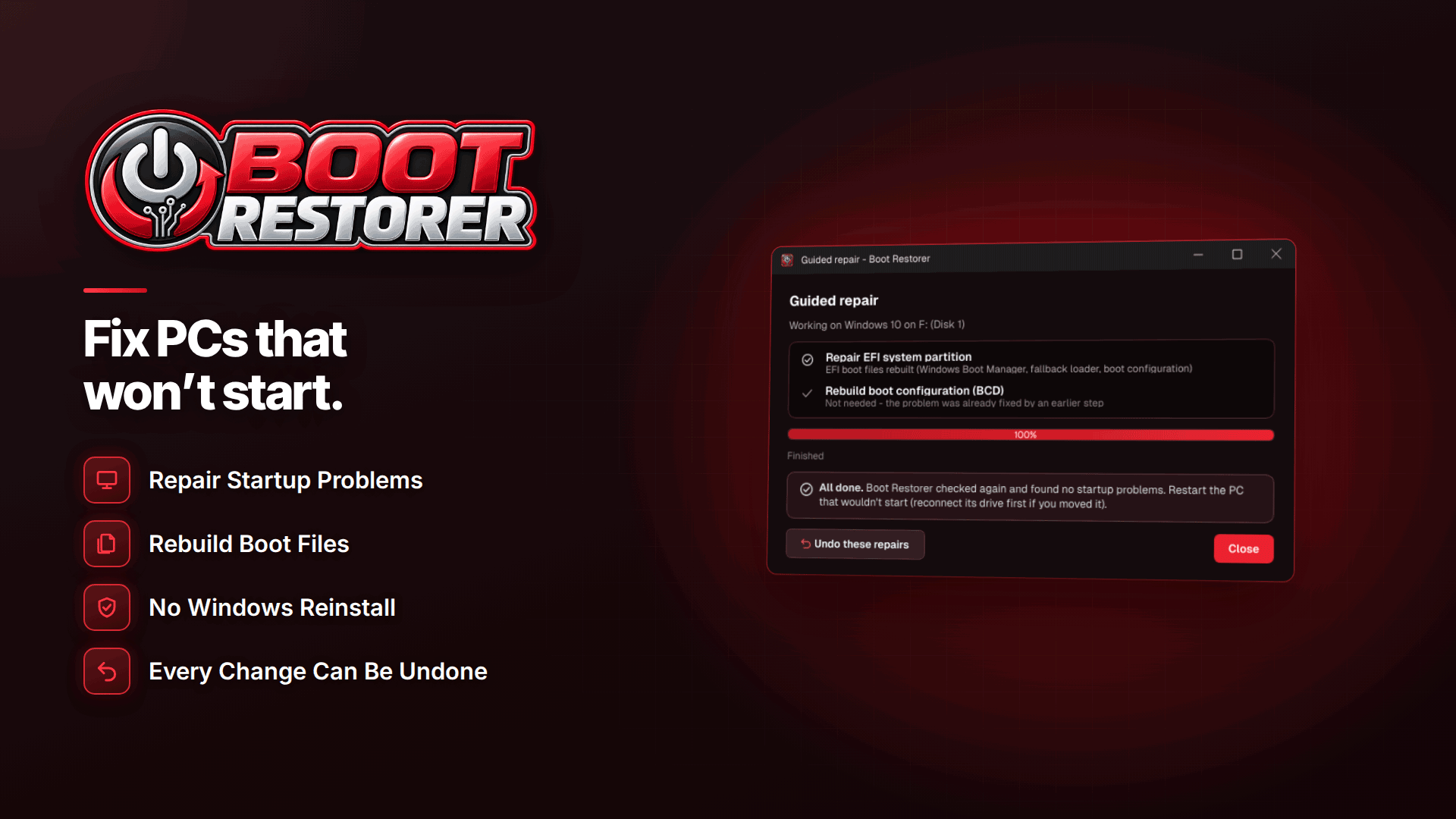
If the menus feel like guesswork, a boot repair tool can do the diagnosis for you. Boot Restorer has a guided "PC won't start" mode that checks the boot configuration, boot manager files, boot records and startup files, and explains the problem in plain English. Among the problems it addresses are "Preparing Automatic Repair" loops and black screens after the logo.
For this situation, its useful features are:
- Copying documents and photos to USB before repairs, from the app or its rescue menu, so your content is safe before anything changes.
- Repairing damaged startup files and stopping automatic repair loops.
- Rolling back unfinished updates when an interrupted install is the cause.
- Starting Windows in safe mode so you can remove a bad driver.
- One-click undo. Each repair saves a backup first, so you can reverse it.
Because a looping PC never reaches the desktop, you run it from a recovery USB that holds a rescue menu and the software. It needs no internet and starts from Windows' recovery Command Prompt or a Windows installation USB by running BOOTRESTORER.CMD. The rescue menu works on Windows 7 to 11, including PCs where it was never installed, so you can build the USB on another computer. The tool itself installs on 64-bit Windows 10 and 11.
It only repairs the files Windows uses to start; it does not fix hardware. If your drive isn't detected, it will report a likely hardware or connection fault instead of attempting a repair.
When should you stop and get help?
Stop troubleshooting and focus on getting your data off if you notice:
- the drive isn't listed in your PC's UEFI/BIOS setup;
- clicking, grinding or the PC freezing for long periods while reading the drive;
- the loop returning immediately after every successful fix.
These point towards hardware. Repeatedly forcing restarts on a dying drive can make recovery harder.
Make a recovery USB before you need one
The best time to prepare is when your PC is working. Repairs depend on having a backup or the clean boot files Windows keeps, so a boot backup and recovery USB made in advance give you far better odds. A sensible routine for a creator business:
- Back up your boot files and make a recovery USB on your working editing PC.
- Label it and keep it with your camera kit, not in a drawer you'll forget.
- Keep your shoots in at least one other place, following a proper backup strategy for content creators.
- Note your BitLocker recovery key somewhere safe and offline.
Hardware matters too: our equipment starter kit covers what to look for in an editing machine and storage.
Frequently asked questions
Will Automatic Repair delete my files?
Automatic Repair itself does not delete personal files. The risk comes from later steps, such as resetting or reinstalling Windows, so copy your files off before you choose anything with "reset" in the name.
How long should I wait on "Preparing Automatic Repair"?
Give it a reasonable time, especially on a slower drive. If it restarts back to the same screen over and over, it isn't going to fix itself and you should move on to the steps above.
Do I need to reinstall Windows to fix a boot loop?
Usually not. Rolling back an update, removing a driver in safe mode or repairing startup files fixes most loops. Reinstalling should be the last resort, after your content is safely copied.
Next steps
Once your editing PC is stable, think about the wider resilience of your business. Our guide to starting a content creator business covers the basics, and a realistic content calendar with buffer days stops one bad morning from wrecking your posting schedule. Then install Boot Restorer while everything works, back up your boot files and keep that recovery USB ready.