To tell if an SSD is failing, check its SMART health data: a rating of Caution or Bad, a high percentage of life used, growing error counts or overheating are the warning signs, often before you notice anything. Everyday symptoms include files that won't open, freezes when saving, very slow copies and the drive disappearing. If any of these show up, back up first and diagnose second.
For a creator, the laptop SSD, the external drive in your bag and the SD card in your camera hold your income. This guide shows you how to read drive health in plain terms, check SSD wear and temperature, test SD cards for fake capacity and set up alerts so you hear about problems early.
What are the signs a hard drive or SSD is failing?
SSDs and hard drives fail differently, but the warning signs overlap:
- Files that won't open or are corrupted, especially recent clips or RAW photos.
- Freezes or long pauses when saving, exporting or opening folders.
- Copies that start fast and then crawl, or fail partway.
- The drive disappearing from File Explorer, then coming back.
- Clicking or grinding from a traditional hard drive (SSDs are silent, so they give no audible warning).
- A "SMART hard disk error" message at start-up, which means the drive itself is reporting a problem.
Not every slow drive is dying; a full drive or a slow USB port can cause similar symptoms. That's why a proper health check matters.
What is SMART and how do you read it?
SMART (Self-Monitoring, Analysis and Reporting Technology) is a set of counters the drive keeps about itself: errors, reallocated sectors, power-on hours, temperature and, on SSDs, how much of its rated write endurance has been used. Raw SMART tables are hard to interpret, so the useful part is turning them into a verdict you can act on.
Windows 11 can show basic drive health for NVMe SSDs under Settings > System > Storage > Advanced storage settings > Disks & volumes, then Properties, including estimated remaining life, available spare and temperature. It doesn't cover SATA SSDs, hard drives or most external drives, and it doesn't scan for bad sectors.
How to check SSD health on Windows properly
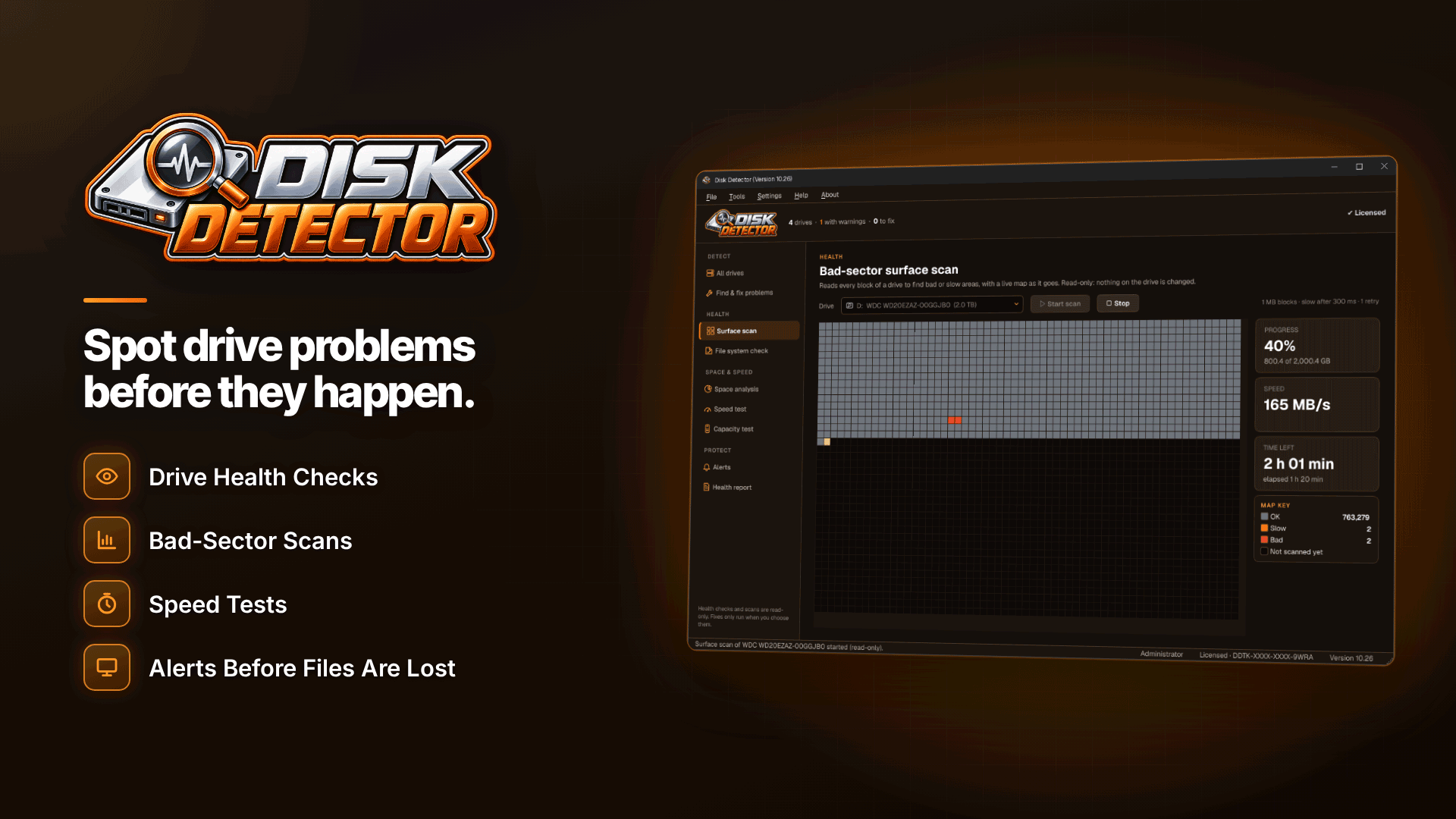
For a fuller check across every drive you own, a dedicated diagnostics tool is easier. Disk Detector reads SMART health for hard drives, SATA SSDs and NVMe drives on Windows 10 and 11, and explains the result in plain language with next steps.
1. Read the health rating
Each drive gets a SMART health rating of Good, Caution or Bad, with the reasons behind it and advice on what to do. A full, explained SMART table is there if you want detail.
2. Check SSD life used and temperature
The tool shows drive temperature, SSD life used and an estimated remaining life. Life used climbs with the amount of data written, so heavy video editing and exporting wears an SSD faster than browsing. A steady rise is normal; a sudden jump is worth watching.
3. Run a read-only surface scan
A read-only bad-sector scan checks the whole drive and shows a live block map. Because it only reads, it doesn't change your files, and it stops cleanly if the drive disconnects, which is useful for a flaky external drive.
4. Check the speed
The speed benchmark compares read and write speeds with expected performance for the drive type. A drive far below expectations may be struggling, or the problem may be a slow USB port or cable, which the benchmark can help you spot.
Is your NVMe SSD overheating?
Fast NVMe drives in thin laptops and compact enclosures can get hot during long exports or large copies. When they do, they slow themselves down to protect the hardware, which feels like the drive "stalling". Check the temperature during a heavy job and compare it with the maker's stated operating range for your model. Practical fixes include better airflow, a heatsink on desktop drives, keeping laptops off soft surfaces while exporting, and not leaving external SSDs in direct sun.
How to check if an SD card is fake
Counterfeit SD cards and USB sticks are a real problem. They report a larger capacity than they have, so the first part of a shoot records fine and later files are silently lost or corrupted. You won't know until you try to edit.
A capacity test writes to the whole card and checks it can read everything back, revealing the real usable size. Disk Detector includes this capacity test (fake drive check), along with a write-protection check and diagnosis of why a USB stick, SD card or external drive isn't recognised. Test every new card before its first shoot, especially if it came from a marketplace seller.
Set up alerts so you hear about problems early
Health checks only help if you run them. Scheduled background checks with desktop alerts warn you about declining health, overheating or low space, and a "New drive found" check runs when you connect a drive. For a creator who plugs in different cards and drives every week, that automatic check catches problems before you start offloading a shoot.
A simple drive-health routine for creators
You don't need to become a hardware expert. A ten-minute routine once a month covers most risks:
- Check the health rating and SSD life used on your laptop or editing PC.
- Plug in each external drive and let the new-drive check run.
- Test any new SD cards or USB sticks for real capacity before they go in your camera bag.
- Confirm last month's shoots exist in at least two places.
- Note anything that has moved from Good to Caution, and plan a replacement.
What to do if a drive shows Caution
A drive rated Caution or Bad may still work for a while, but the advice is clear: back up first, then replace it. In practice:
- Stop saving new work to that drive.
- Copy your most valuable content off first: unreleased shoots, current projects, release forms.
- Then copy everything else.
- Replace the drive and retire the old one for anything important.
Note that health tools diagnose problems; they don't recover deleted files. That's another reason to back up before a drive gets worse. If you need a full plan, our guides to a backup strategy for content creators and to your wider business backup plan cover both the files and the platforms.
Tip: some USB enclosures don't pass SMART data through to Windows. If a health check can't read an external drive's SMART data, the app reports this, so you know the result is incomplete rather than "healthy".
Frequently asked questions
How long do SSDs last?
It depends on the model's endurance rating and how much you write to it. Check the life used figure regularly rather than relying on age alone.
Can a failing SSD be repaired?
Generally, no. Treat a failing SSD as a reason to copy your data off and replace it, not something to fix.
How often should I check drive health?
Let scheduled background checks run continuously, and do a manual check before any big shoot or before trusting a second-hand drive.
Next steps
Good storage is part of your kit, so our equipment starter kit is worth a look when you replace a drive, and building buffer days into your content calendar means one failed card won't stop you posting. To see where your drives stand today, run Disk Detector and check each health rating before your next shoot.