How do I blur sensitive information in a screen recording? Plan the recording so as little private information as possible is on screen, then use an editor with tracked blur or pixelation to cover anything that remains, such as usernames, email addresses or earnings, and follow it as it moves. Export a new copy, watch it through at full size, and only share that exported file, never the original recording.
For creators who share dashboards, statistics, DMs or tutorials, this is basic operational security. This guide covers what tends to leak, how to plan a safer recording, how to blur moving details and a final checklist before you post.
What leaks in screen recordings?
Most leaks are not the obvious things you meant to hide. They are the details at the edges of the screen:
- Account identifiers: legal names, usernames on other platforms, email addresses and account IDs in menus or URLs.
- Money: payout details, bank names, partial card numbers and exact earnings.
- Notifications: chat previews, calendar reminders and email pop-ups that appear mid-recording.
- Browser clutter: bookmarks, open tabs, autocomplete suggestions and search history.
- Location clues: time zones, weather widgets, local news tabs and file paths containing your real name.
- Your webcam frame: mail on a desk, photos on a wall, window views and reflections in glasses or screens.
These details are exactly what people use to connect a stage identity to a real one. Our guides to staying anonymous on OnlyFans and preventing creator doxxing cover the wider picture.
Screen recording privacy tips: plan before you press record
The safest detail is one that was never recorded. Before you start:
- Record a region, not the desktop. Capture a single window, browser tab or drawn area so menus, taskbars and other apps stay out of frame.
- Use a clean browser profile with no bookmarks, extensions or saved logins visible.
- Silence notifications on your PC and phone, and close messaging apps.
- Prepare demo data where possible, for example a test post rather than a real fan conversation.
- Script it. Knowing exactly which screens you will show reduces the chance of clicking into something private.
If you are sharing statistics, decide in advance which numbers you are comfortable showing. Our guide to reading OnlyFans statistics explains which figures matter, which helps you decide what to blur and what to keep.
How to blur part of a video
There are three common ways to hide something in a recording:
| Method | Strengths | Watch out for |
|---|---|---|
| Blur | Looks tidy and keeps the layout readable | Use a strong setting on text, as light blur can leave words guessable |
| Pixelation | Clearly signals that something is hidden | Large blocks are safer than fine ones for short text such as numbers |
| Solid box or crop | Removes the information completely | Less attractive, but the right choice for anything critical |
Pixelate a moving object in video
A static blur box works for a fixed sidebar, but most screen recordings scroll. When you scroll a page, the username moves and a static box ends up blurring empty space while the name slides into view. Tracked blur solves this by following the detail across frames.
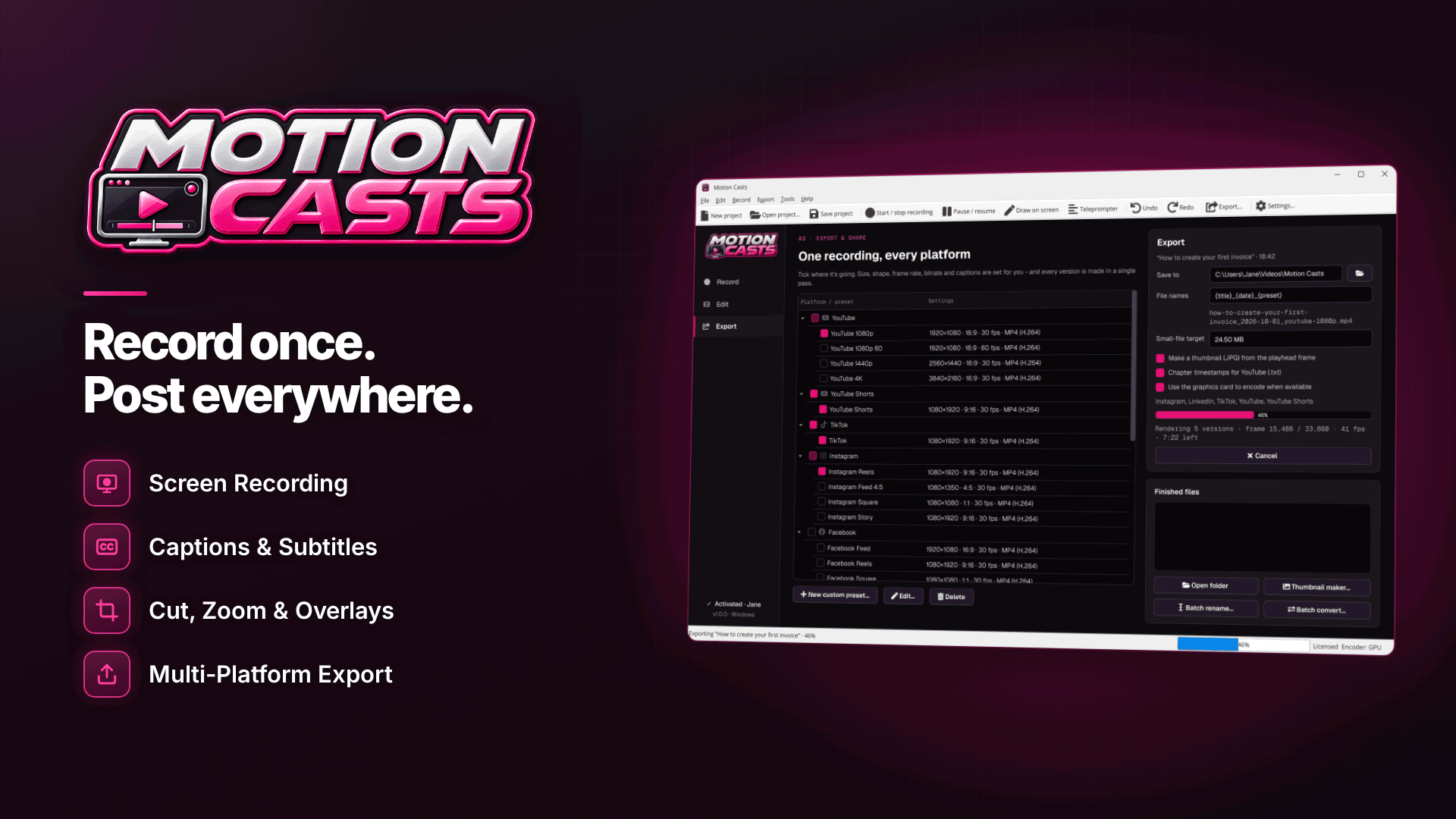
On Windows, Motion Casts is a screen recorder and editor that can blur or pixelate private details with an area that tracks them, and it also offers boxes and other overlays when you would rather cover something completely. A typical routine:
- Record your window, region or browser tab.
- Open the recording in the editor and scrub to the first frame where the detail appears.
- Draw a blur or pixelate area over it and let it track the detail.
- Step through the scroll or movement to check the area stays on target, and adjust where it drifts.
- Repeat for each detail, then use the timeline markers to note what you have covered.
The original recording is never changed: projects are saved as .mcproj files that point to the originals, and blur is applied in the exported copy. That is useful for re-editing, but it also means the unblurred original still exists on your PC, so store it securely and never share it by mistake.
How to blur your webcam background
If you appear in a webcam overlay, your room can give away as much as your screen. The tool's webcam overlay, as a circle or rounded box in any corner, has an optional background blur that uses face detection to keep you in focus. It helps, but it is not a substitute for a neutral background: blur can soften at the edges when you move, so clear the area behind you of anything identifying as well.
Remember: blurring a screen recording does nothing for metadata in photos you share alongside it. See how to remove location data from photos as part of the same routine.
Other ways to hide personal info in a screen recording
- Use the hidden teleprompter for your script, which appears on your screen but not in the recording, rather than reading from a document window that might be captured.
- Crop the final video to remove edges such as browser address bars.
- Cut sections where you accidentally opened something private, rather than trying to blur a whole scene.
- Check audio as well as video: names said out loud and notification sounds also leak information.
Pre-share checklist
- Watch the exported file at full screen, not in the editor preview.
- Pause on every scroll, page change and pop-up.
- Check the first and last seconds, where desktops and taskbars often appear.
- Listen for names, places and notification sounds.
- Check the file name and any thumbnail for personal details.
- Share only the exported file and delete temporary copies you do not need.
Frequently asked questions
Can blurred text be recovered?
Weak blur on short text can sometimes be guessed. Use strong blur or large pixelation, and for critical details such as account numbers use a solid box or cut the section.
Does blurring change my original recording?
Not in an editor that works non-destructively. The blur is applied to the exported copy, so keep the original private and only share the export.
Is blurring enough to stay anonymous?
No. It is one layer. Combine it with a clean recording setup, a separate creator identity and careful metadata handling.
Next steps
Set up a clean browser profile for recordings today and run your next tutorial through the checklist above before posting. If you want tracked blur, webcam background blur and region capture in one Windows tool, see what Motion Casts offers.