To permanently redact personal data in a PDF, you need a tool that deletes the underlying text, images and hidden metadata from the file itself, not one that simply draws a black shape on top. Mark everything you want removed, apply the redaction, save a new copy, then test that copy by searching for and copy-pasting the redacted words. If nothing comes back, the data is gone.
That last check matters because most redaction failures look perfect on screen. For a webmaster answering a subject access request, sending a complaint file to a payment processor or passing evidence to a solicitor, a leaked name or email address in a "redacted" PDF is a personal data breach waiting to happen.
Why drawing black boxes is not redaction
A PDF is built in layers. The text you see is stored as real characters, usually with a font and a position on the page. When you draw a filled rectangle, add a black highlight or paste an image over a line, you add a new layer. The original characters are still in the file underneath.
Anyone who receives that file can usually recover the "hidden" text in seconds by:
- selecting the area and copying it into a text editor;
- using the PDF reader's search box, which still finds the word;
- opening the file in an editor and moving or deleting the box;
- exporting the PDF to Word or plain text.
The UK Information Commissioner's Office has repeatedly warned about this. Its guidance on disclosing documents securely, updated in July 2025 after several high-profile public-sector breaches, covers hidden data, metadata and ineffective redaction, and gives practical checklists worth reading before you send anything out.
What personal data should you look for?
Before you open any tool, decide what has to go. In a subject access request (SAR) you give the requester their own data but usually remove other people's details. In a disclosure to a third party you often strip almost everything except what is strictly needed. Typical items in a site owner's files include:
- Names and usernames of other customers, staff, moderators or performers.
- Contact details: email addresses, phone numbers, postal addresses.
- Financial details: card fragments, IBANs, sort codes, account numbers, payout IDs.
- Identity numbers: passport, driving licence or national ID numbers from verification records.
- Technical identifiers: IP addresses, device IDs, affiliate sub-IDs that link back to a person.
- Sensitive context: anything revealing sexual life or health, which counts as special category data. Our guide to special category data on adult sites explains why this needs extra care.
Do not forget the parts of a PDF you cannot see on the page: document properties (author, company, software used), comments and annotations, bookmarks, attached files, form field values and embedded images with their own metadata.
How to redact a PDF offline, step by step
Uploading a file full of personal data to a free online redaction website to protect that data is self-defeating: you have just shared it with another company, possibly outside the UK or EU. Doing the job on your own PC keeps the data where it already is. A sensible workflow looks like this:
- Work on a copy. Keep the original untouched and in its normal secure location. Name the copy clearly, for example SAR-2026-014-redacted.pdf.
- Search, don't just scroll. Use search terms for every name and identifier on your list, and pattern searches for email addresses, phone numbers and account numbers so you catch the ones you did not know about.
- Mark areas manually. Signatures, photos, scanned ID images and handwritten notes will not be found by text search, so draw redaction areas over them.
- Review every mark. Check you have not over-redacted the requester's own data or under-redacted a third party's.
- Apply and save as a new file. Redaction is only real once it has been applied and saved.
- Remove metadata. Strip document properties and other hidden information as a separate step.
- Test the output using the checks in the next section, then send it securely.
Scans need extra thought. If a page is a scanned image, there is no text to search until you run OCR. Either OCR it first so search and pattern tools can find the details, or redact by drawing areas over the image.
How Easy PDFs handles permanent redaction
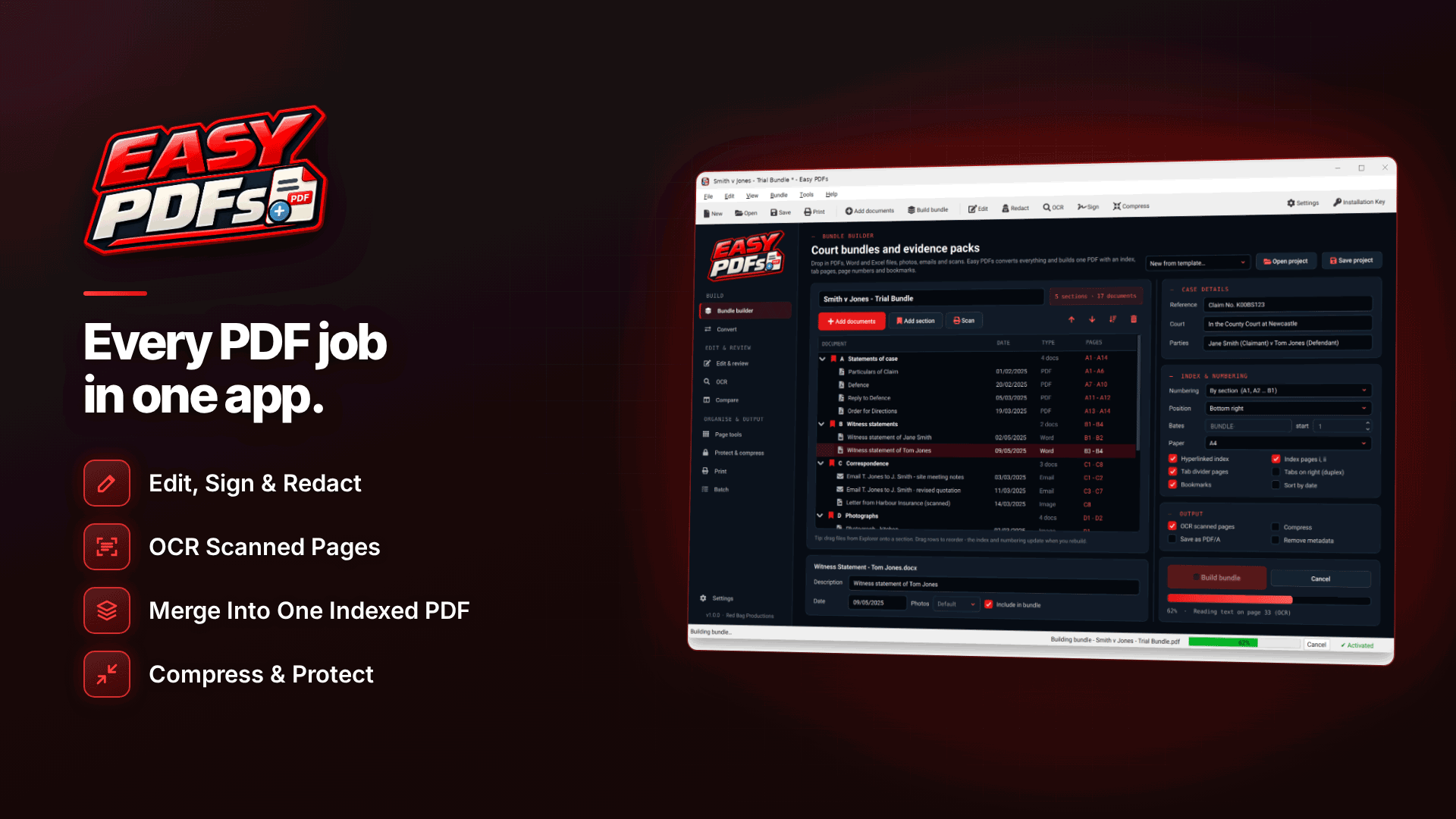
One practical option for Windows users is Easy PDFs, an offline PDF editor that processes files on your own PC rather than uploading them. It runs on 64-bit Windows 10 (version 1809 or later) and Windows 11, and it covers each step of the workflow above:
- Search-term redaction for names, usernames or any word or phrase you type.
- Pattern redaction for email addresses, phone numbers, card numbers, bank numbers and ID numbers, which is useful when a support-ticket export contains details you have not spotted.
- Area redaction for signatures, photos and scanned images.
- Metadata removal to strip hidden document information.
- OCR to turn scanned pages into searchable PDFs first (English is built in; other languages need a separate Tesseract install).
The redacted content is removed from the file, not covered, and the tool is clear that redaction becomes permanent once you save. That is exactly what you want in the output and exactly why you should always keep your untouched original elsewhere. If you need to protect the redacted copy in transit, the same software can add an AES-256 password, although some older PDF readers cannot open AES-256 files, so warn the recipient.
How to check a redaction actually worked
Never send a redacted file without testing it. Five minutes of checks is cheap compared with a breach report.
| Check | How to do it | What good looks like |
|---|---|---|
| Search | Open the redacted copy and search for each removed name, email and number | No results |
| Copy and paste | Select all text on a redacted page and paste it into Notepad | Redacted words do not appear |
| Properties | Open the document properties in your PDF reader | No author name, company or revealing title |
| Annotations | Open the comments and attachments panels | Empty, or only what you meant to include |
| Second pair of eyes | Ask a colleague to review against your redaction list | Nothing missed, nothing over-redacted |
Redacting a PDF for a subject access request
SARs are the most common reason small site owners need redaction. You normally have one month to respond, extendable in limited cases, and you must give the requester their own data while protecting other people. Our walkthrough on how to respond to a subject access request covers the process; for the redaction itself, keep these points in mind:
- Keep a redaction log. Note what you removed and why (for example "third-party email, page 4"). If the requester complains to the ICO, you can explain your decisions.
- Do not redact the requester's own data just because it is awkward. Withholding needs a lawful exemption.
- Be consistent across chat logs, emails and payment records, so a name removed in one file does not appear in another.
- Exports are a trap. CSV and spreadsheet exports converted to PDF can carry hidden columns or sheets. Clean the data before converting, then redact.
Common redaction mistakes to avoid
- Using highlight, a black pen tool or a shape instead of a proper redaction function.
- Saving over the original, then discovering you redacted too much.
- Forgetting headers, footers, file names and email subject lines, which often contain names.
- Leaving comments or tracked changes in the source document before converting it to PDF.
- Sending the redacted file by ordinary email to the wrong address. Double-check recipients; a misdirected file can still be a breach.
If something does slip through, act quickly. Our guide to the 72-hour breach notification rule explains when you have to tell the ICO.
Frequently asked questions
Can redaction in a PDF be undone?
Proper redaction removes the content from the file, so it cannot be undone in the saved copy. That is why you must keep the original separately. Fake redaction, such as black boxes or highlights, can usually be reversed by anyone.
How do I remove metadata from a PDF?
Use your PDF editor's metadata or "remove hidden information" function, save a new copy, then check the document properties. Remember that images inside the PDF may carry their own data, so redact or replace them if needed.
Is it safe to use an online PDF redaction tool?
It means uploading personal data to a third party, which you would need to justify under UK GDPR and cover in your records. For SARs and disclosures, an offline tool on your own PC avoids that extra processing entirely.
Do I have to redact other people's names in a SAR?
Usually you must consider whether disclosing third-party data is reasonable. Often you redact it unless the person consents or it is reasonable to disclose. This is general information, not legal advice; take advice on difficult cases.
Next steps
Write a short redaction checklist for your business, store originals securely and test every output before it leaves your PC. For the wider picture of your obligations, read our guide to GDPR and cookie compliance for affiliate websites. If you want a single Windows tool that searches, pattern-matches, redacts and strips metadata without uploading anything, take a look at Easy PDFs.