Is FTP GDPR compliant? GDPR does not ban any protocol, but it requires security appropriate to the risk, and it names encryption as an example measure. Plain FTP sends your password and every file unencrypted, so if your transfers include personal data such as subscriber lists, customer exports or server logs, you should switch to SFTP or FTPS. Both are widely supported and the change usually takes minutes.
This is general information, not legal advice; for decisions about your own processing, speak to a data protection professional.
What does GDPR say about secure file transfer?
The relevant rule is Article 32, "security of processing". It requires controllers and processors to put in place technical and organisational measures that give a level of security appropriate to the risk, taking into account the state of the art, the nature of the processing and the likely harm to people if something goes wrong. Its list of example measures starts with "the pseudonymisation and encryption of personal data", followed by keeping systems confidential, intact and available, being able to restore data after an incident, and regularly testing your measures.
You can read the text in the EU GDPR on EUR-Lex and the retained UK version of Article 32 on legislation.gov.uk. The duty is essentially the same in both; our comparison of UK GDPR and EU GDPR covers where they differ.
In other words, the law does not say "never use FTP". It says you must be able to justify your security choices. When most hosts offer encrypted alternatives that take minutes to switch on, it is hard to argue that sending personal data in plain text is appropriate.
Why is plain FTP a risk?
FTP was designed decades before encryption became routine. On a plain FTP connection:
- Your username and password travel in plain text, so anyone who can see the traffic, for example on shared Wi-Fi, can capture them and log in to your server.
- File contents are unencrypted, so an intercepted subscriber CSV is readable.
- There is no reliable check of the server's identity, so you cannot be sure you are talking to your real host.
A stolen FTP password is often more damaging than one intercepted file, because it gives the attacker the whole site: they can download stored data or plant malicious scripts that harvest visitor information.
What personal data moves over FTP on a typical site?
Many webmasters assume they "only upload HTML". In practice, transfers often include:
- Newsletter or member exports with names and email addresses
- Web server and error logs containing IP addresses
- Contact form submissions saved as files
- Database backups downloaded for safe keeping
- Performer or model paperwork on adult sites, which needs particular care (see special category data on adult sites)
If any of these apply, the transfer method is part of your GDPR security picture.
SFTP vs FTPS: which should you choose?
| SFTP | FTPS | |
|---|---|---|
| Based on | SSH | FTP with TLS encryption |
| Usual port | 22 | 21 (explicit) or 990 (implicit) |
| Server identity check | Host key | TLS certificate |
| Sign-in options | Password or SSH key | Password (with certificate checks) |
| Firewall friendliness | One port | Extra data ports may be needed |
Both encrypt credentials and data in transit. SFTP is usually simpler and supports key-based sign-in; FTPS suits hosts that do not offer SSH. Either is a large improvement on plain FTP.
How to make your file transfers secure in practice
The protocol is one part; the habits around it matter as much. Here is how a modern Windows client such as Simpler FTP helps with each step.
Use Automatic mode or choose encryption explicitly
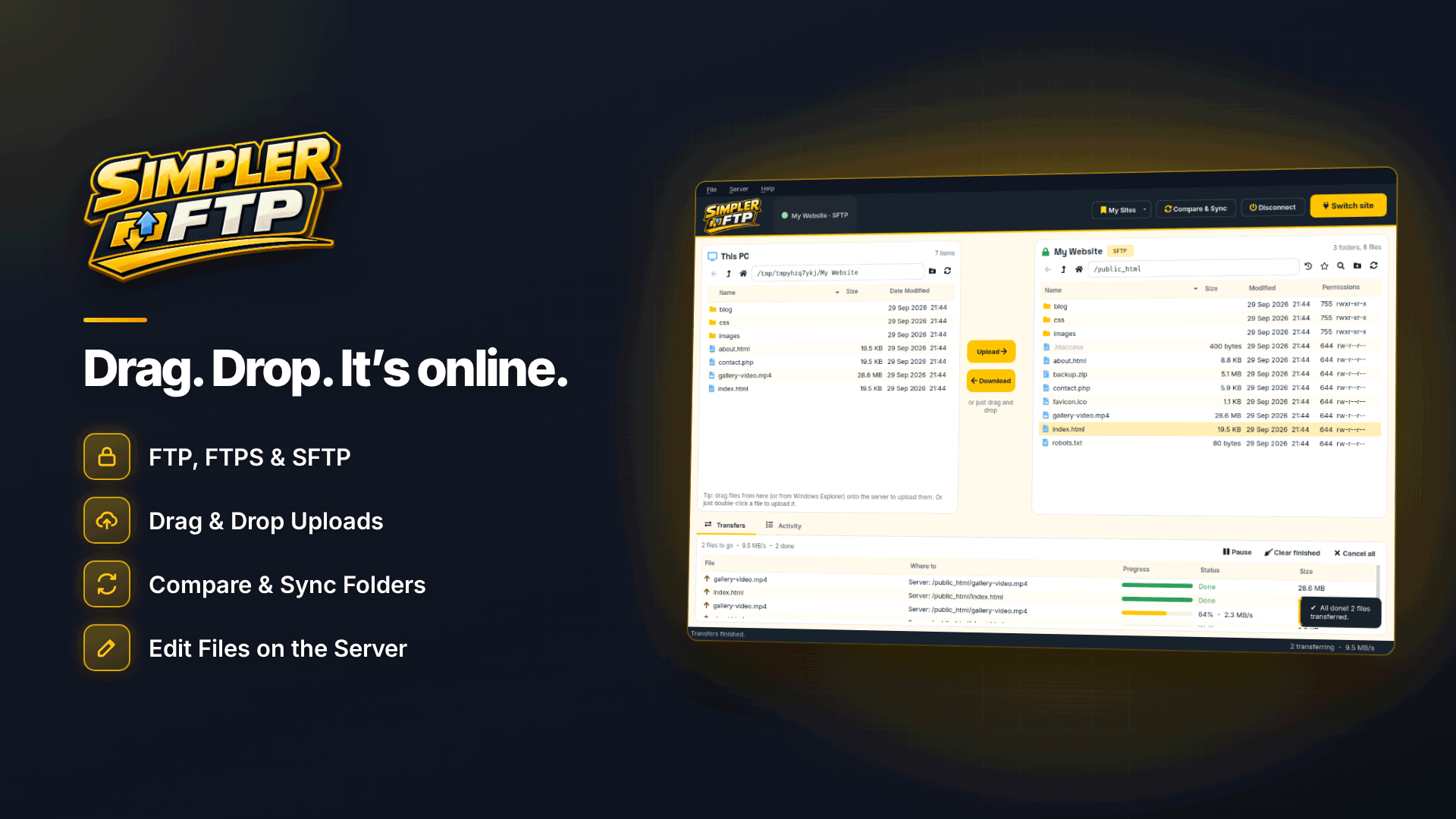
Simpler FTP supports SFTP, FTPS (explicit and implicit) and FTP. Its Automatic mode picks the most secure option the server offers, which stops you falling back to plain FTP by accident. Treat plain FTP as a legacy option for older servers on trusted networks only.
Sign in with an SSH key
For SFTP you can sign in with a password, an SSH key file or both. A key is far harder to guess or phish than a password. Keys must be in OpenSSH format; PuTTY .ppk keys need converting first.
Store FTP passwords securely
Never keep server passwords in a text file or spreadsheet. The client encrypts saved passwords and stores them on your PC, tied to your Windows user account, and they are not sent to the vendor; there is no account or cloud sync. Protect the Windows account itself with a strong password and disk encryption.
Take security warnings seriously
You are prompted about untrusted certificates, unencrypted connections and changed server identities. A changed identity can be innocent, such as a server migration, but it can also mean someone is intercepting the connection. Confirm with your host before accepting it.
Tighten permissions
Files containing personal data should not be world-readable. The permissions editor uses tick boxes for owner, group and public read, write and execute. Note that some Windows servers do not support permission changes.
Organisational measures that matter too
- Do not leave exports in the web root. Anything in public_html can be downloaded by URL. Move or delete exports as soon as the job is done.
- One account per person. Give each developer or contractor their own login, limited to the folders they need, and remove it when they finish.
- Rotate credentials after staff changes or a suspected leak.
- Record your choices. A short note in your security records showing that transfers use SFTP or FTPS helps demonstrate accountability. For new high-risk processing, check whether you need a DPIA.
- Describe it honestly. Your privacy policy should reflect how you actually protect data.
If credentials may have leaked: change the password, review server files for changes, and assess whether personal data was exposed. A reportable personal data breach must normally be notified to the regulator within 72 hours of becoming aware of it; see our guide to the 72-hour breach rule.
A 15-minute audit of your current connections
If you have run sites for a while, you probably have saved connections from years ago. Work through them once:
- List every server you connect to, including old client sites, staging servers and NAS drives at home or in the office.
- Check the protocol on each. Anything still set to plain FTP should be changed to SFTP or FTPS, or to Automatic so the most secure option is chosen.
- Delete connections you no longer need and ask the host to remove the matching accounts.
- Look for stray files on each server: old exports, backups or log archives sitting in public folders.
- Find where passwords live. Move any that sit in notes, emails or spreadsheets into encrypted storage and change them.
- Write down what you changed and when. That record is useful evidence of accountability if you are ever asked how you protect personal data.
Frequently asked questions
Is plain FTP ever acceptable?
For files with no personal data on a trusted internal network, the risk may be low. Even then, the password travels in clear text, so most webmasters are better off using SFTP or FTPS everywhere and removing the decision.
Does my host have to provide SFTP?
There is no specific legal rule, but a host acting as your processor must provide appropriate security. Most reputable hosts offer SFTP or FTPS; if yours does not, that is worth weighing when you choose a provider.
Is encryption in transit enough on its own?
No. It protects data on the move. You also need sensible access control, deletion of files you no longer need and secure storage at both ends.
Next steps
Check your hosting panel for SFTP or FTPS details, update every saved connection and remove any plain FTP accounts you do not need. If you are reviewing hosts at the same time, start with the adult web hosting directory. For a Windows client that defaults to the most secure protocol available and encrypts saved passwords on your PC, see Simpler FTP.