If you are asking how should I encrypt website backups, the practical answer is: package each backup (database dump plus site files) into an AES-256 encrypted archive with the file names hidden, test that the archive opens and is intact, and store the password separately from the backup in a password manager. Do this before the backup goes anywhere offsite, whether that is a USB drive, a NAS at home or cloud storage.
This guide explains why encryption matters for backups under GDPR, what a sound routine looks like for a small site business, and the mistakes that leave "encrypted" backups exposed. It is general information, not legal advice; take professional advice for decisions about your own obligations.
What does GDPR say about backup security?
Backups that contain personal data are covered by the same rules as the live database. Article 32 of the GDPR requires security appropriate to the risk and names "the pseudonymisation and encryption of personal data" among the measures to consider, alongside the ability to restore data in a timely manner and regular testing of your measures. The UK GDPR contains the same wording, and the ICO's encryption guidance explains how it applies in practice.
Encryption also matters if things go wrong. Under Article 34, you don't have to notify affected individuals of a breach if the data was protected by measures that make it unintelligible to anyone not authorised, such as encryption. You may still need to tell the regulator; see our guide to the 72-hour breach notification rule. For the wider picture, read what GDPR requires for backups on a small website business.
For adult sites, the stakes are higher. Membership lists and purchase histories can reveal information about people's sex lives, which is special category data; our guide to special category data on adult sites explains why that raises the bar.
What should be in an encrypted backup?
- Database dumps: users, orders, subscribers, affiliate accounts. These hold most of the personal data.
- Configuration files: they often contain database passwords, API keys and payment credentials.
- Uploads and logs: user uploads, ID documents for age or identity checks, and server logs containing IP addresses.
- Site files: themes and code are less sensitive, but encrypting the whole bundle is simpler than deciding file by file.
Choosing the right archive format
| Format | Encryption | Hides file names? | Best for |
|---|---|---|---|
| 7Z | AES-256 | Yes, optionally | Offsite and cloud backups |
| ZIP | AES-256 (in tools that support it) | No; names stay visible | Sharing with recipients who need ZIP |
| TAR.GZ | None built in | No | Moving files to and from Linux servers |
File names matter more than people expect. A ZIP called backup.zip that lists members-export-2026-10.sql and id-verification-uploads/ tells anyone who finds it exactly what is inside. 7Z with name encryption shows nothing without the password.
Building the backup on a Windows PC
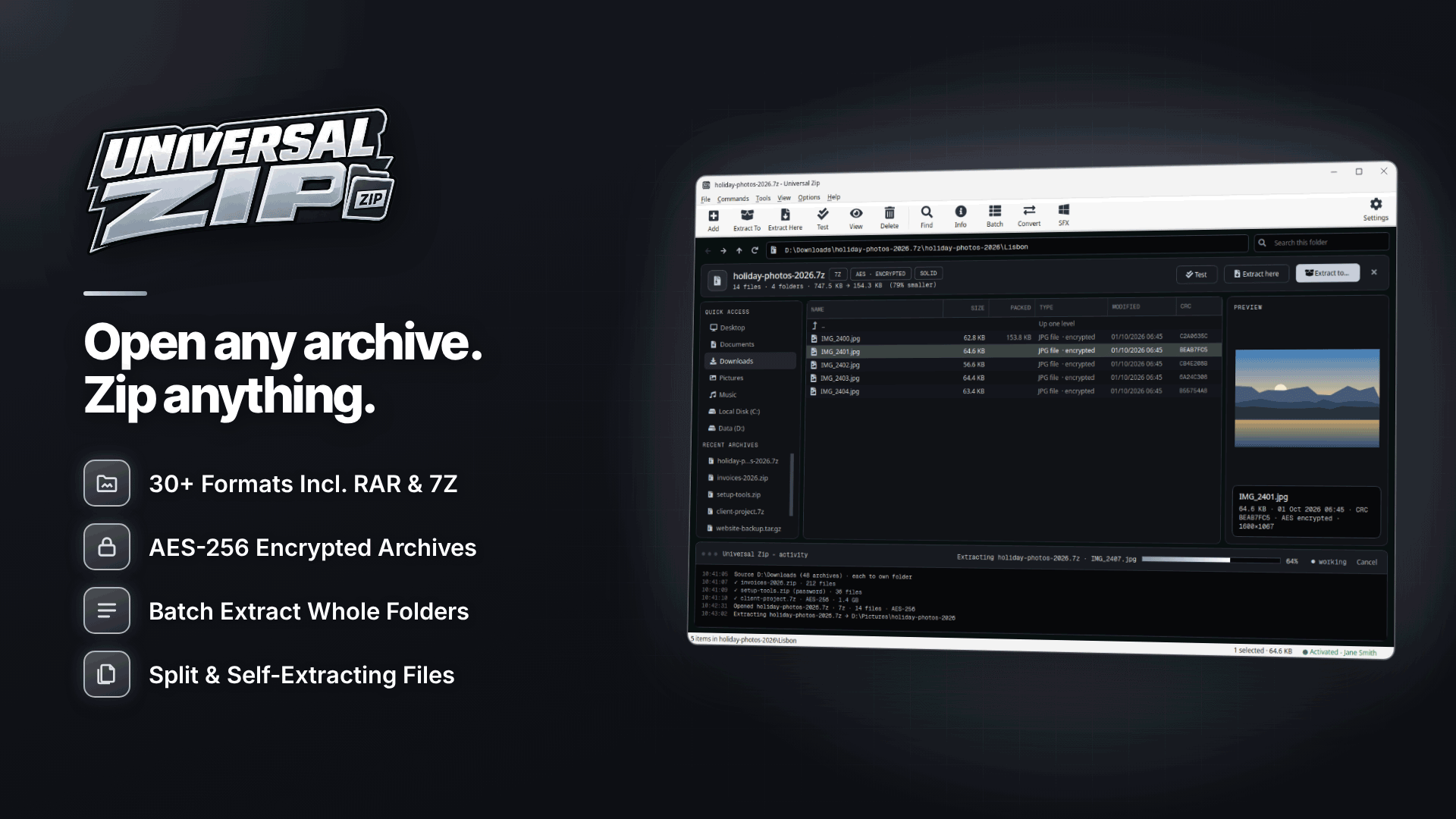
Many small site owners pull backups from their host to a Windows PC before storing them offsite. Universal Zip covers the whole job on Windows 10 and 11. It creates 7Z and ZIP archives with AES-256 encryption and an option to hide file names in 7Z, and it can also create TAR, TAR.GZ, TAR.BZ2 and TAR.XZ when you need to send files back to a Linux server. Remember that TAR formats carry no encryption, so use them for transport to your server, not for storage.
- Download the database dump and site files from your host into one dated folder.
- Right-click the folder and choose Add to archive; select 7Z.
- Turn on AES-256 encryption with a long passphrase and tick the option to hide file names.
- If the backup is going to a FAT32 USB drive, use the 4 GB split preset, because FAT32 can't store files larger than 4 GB. One password covers every part.
- Run the integrity test on the finished archive.
- Copy the archive offsite, then delete the unencrypted working folder.
Test your backups, not just your encryption
An encrypted backup you can't open is no backup at all. Article 32 itself mentions regularly testing your measures and being able to restore data in a timely manner. Build two checks into your routine:
- Integrity test every archive when you create it and again after copying it offsite. It confirms the archive opens and its contents are intact, so you find a bad copy while the original still exists.
- Do a real restore every few months: extract a backup to a test environment and check the database imports and the site runs.
Managing backup passwords
AES-256 is only as strong as the password, and a lost password can't be recovered by anyone, including the people who make the software. Practical rules:
- Use a long passphrase, unique to backups.
- Store it in a business password manager, never in the same location as the backup.
- Make sure a second trusted person or a sealed record can access it if you are unavailable.
- Change it when someone with access leaves the business.
Universal Zip's built-in password manager, which stores frequently used passwords encrypted under your Windows account, is a convenience for creating archives. It shouldn't be your only copy, because it is tied to that Windows account.
Where to store encrypted backups
Follow the usual three-two-one principle: three copies, on two different types of storage, with one offsite. If your backups go to a cloud provider, the location still matters under data protection law; encrypting before upload means the provider holds only unreadable data. For hosting and storage options in a strict data protection market, see hosting in Germany.
Common mistakes that undo the encryption
- Leaving the unencrypted dump behind. The plain .sql file in your Downloads folder, or on the server's public web root, is the real risk. Delete working copies once the encrypted archive is tested.
- Storing the password with the backup. A text file called "password" next to the archive, or the passphrase in the cloud folder's description, defeats the point.
- Encrypting with a weak or reused password. A short or shared password can be guessed; a passphrase of several random words is far stronger.
- Using a format without encryption. TAR.GZ and plain ZIP folders created by Windows aren't encrypted at all, whatever the file is called.
- Never deleting old backups. Each forgotten archive is another copy of personal data you have to protect and account for.
Write your routine down in a short procedure document. If a regulator, a payment partner or a buyer of your business asks how backups are protected, a written process that you actually follow is much more convincing than a verbal assurance.
Frequently asked questions
Is my host's backup enough?
Host backups are useful but sit with the same provider as your live site. An independent, encrypted offsite copy protects you if the hosting account is compromised or closed.
Does encryption make a backup GDPR compliant?
It is a strong safeguard, not a complete answer. You still need retention limits, access controls and a tested restore process.
How long should I keep backups?
Only as long as you need them. Old backups keep copies of data you may have deleted from the live site, so set a retention period and delete expired archives.
Next steps
For encrypting other files that hold personal data, such as exports and spreadsheets, read how to encrypt files that contain customers' personal data.
Then set up a monthly routine: pull the backup, build an encrypted 7Z with hidden file names in Universal Zip, test it and move it offsite.