How do I make a screen recorded review video? Plan a short walkthrough of the offer, record your screen with a webcam overlay and a separate microphone track, then edit out long pauses, blur any account details and export a full-length version for YouTube plus vertical cut-downs for Shorts and TikTok. With the right screen recorder, the whole job can be done on one Windows PC in an afternoon.
For affiliates, video reviews add proof to a written review, reach audiences who search on YouTube, and give you short clips for social traffic. This guide covers planning, recording, editing, exporting and putting the finished video to work on your review pages.
Why video reviews help affiliate sites
A written review asks readers to trust you. A recorded walkthrough shows them: the sign-up steps, what the members' area or dashboard looks like and how a feature actually behaves. That kind of first-hand evidence is what helps a review stand out from thin, rewritten competitors, as covered in our guide to writing affiliate reviews that rank.
Video also opens new traffic channels. A long-form review can rank on YouTube, and short excerpts work as social posts that point back to your site; see our guide to social media traffic for adult affiliates for platform rules.
How to record a software review video: plan first
Most weak review videos fail at the planning stage, not in the edit. Before you press record:
- Write an outline of three to six points: what the offer is, who it suits, a live walkthrough of the key feature, pros and cons, and a verdict.
- Prepare a clean account. Use a test or demo account where possible, close unrelated tabs and turn off notifications.
- Decide what to capture. A single browser tab or a fixed region is cleaner than a full desktop.
- Check your claims. Only say what you have verified yourself; earnings and results claims are regulated advertising.
- Script the disclosure. Say clearly, near the start, that you earn a commission if viewers sign up through your link.
Compliance note: affiliate links in video descriptions and on-screen calls to action need clear disclosure in the UK and EU. Our guide to affiliate disclosure requirements in the UK explains what regulators expect. This is general information, not legal advice.
Choosing a screen recorder with webcam overlay
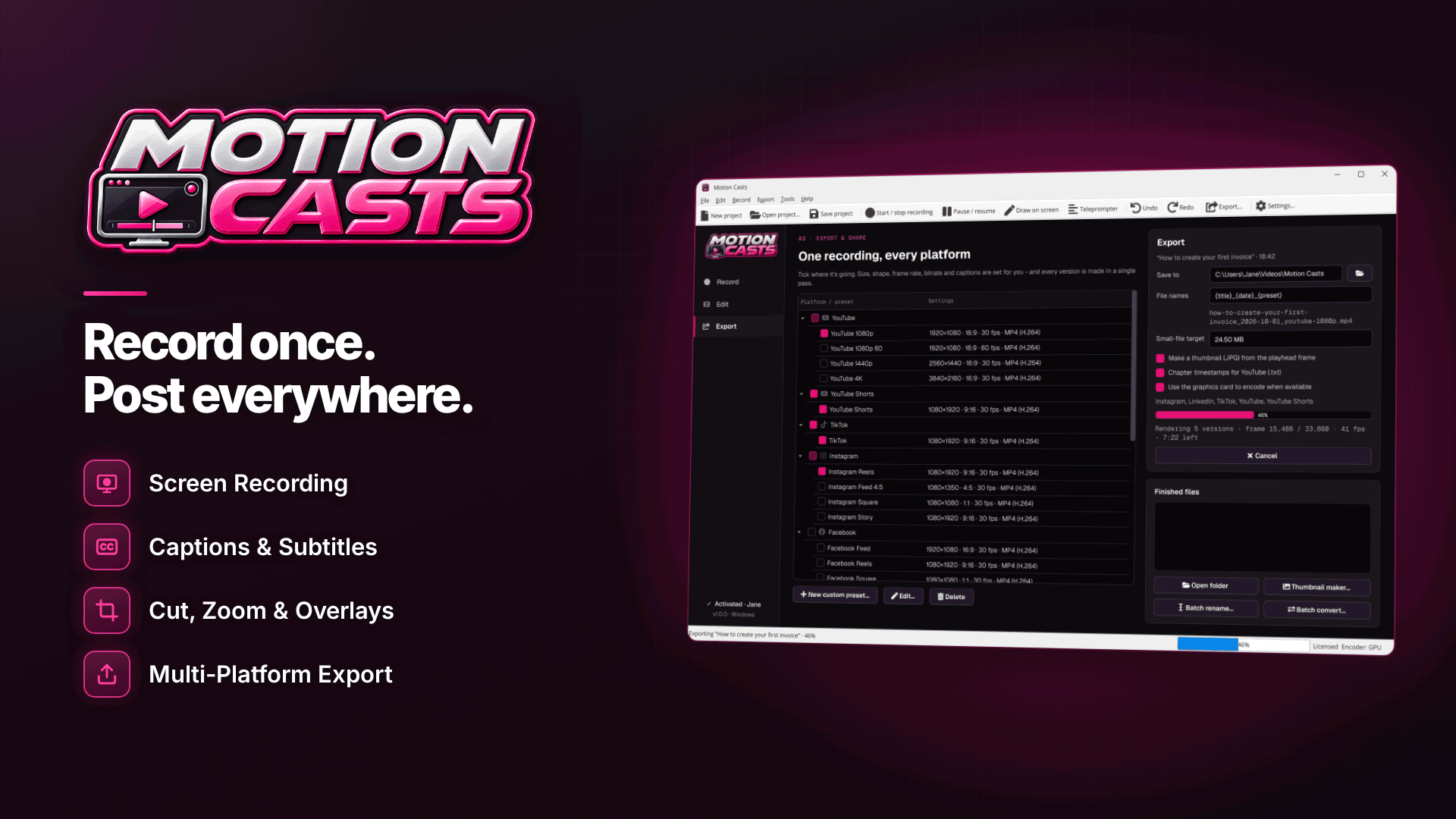
For review videos, look for a recorder that can capture a window or browser tab rather than the whole screen, show your webcam in a corner, record the microphone and system sound separately, highlight clicks and include an editor so you do not need a second tool. Motion Casts is a Windows 10 and 11 screen recorder and editor that covers that list, and the rest of this guide shows how it fits a typical affiliate workflow.
Capture settings
- What to record: full screen, one or all monitors, a single window, a drawn region with preset sizes, or a browser tab's page area.
- Quality: up to 4K at 24, 30 or 60 fps, with GPU encoding and a CPU fallback. For most software reviews, 1080p at 30 fps is plenty.
- Webcam: a circle or rounded box in any of the four corners, with optional background blur that uses face detection.
- Audio: microphone and system sound on separate tracks, with optional noise reduction, so you can lower a noisy demo without touching your voice.
- Control: a countdown, pause and resume, and global hotkeys you can change.
Make the walkthrough easy to follow
Cursor highlights, click ripples and an optional keystroke display help viewers follow what you are doing. Live drawing tools (pen, highlighter, arrows, boxes and text notes) let you circle a setting as you talk. A teleprompter shows your outline on screen but is hidden from the recording, and can follow your voice, which keeps you on script without reading from a second monitor.
A simple structure for a five-minute review
Here is a hypothetical running order that works for most software tools, hosting plans or affiliate programs:
| Section | Rough length | What to show |
|---|---|---|
| Hook and verdict | 20–30 seconds | Who it is for and your one-line conclusion, plus the commission disclosure |
| Sign-up or first login | About a minute | The steps a new user goes through, with any friction points |
| Core feature walkthrough | Two minutes | The one or two features buyers actually care about, with zooms on small text |
| Pros and cons | About a minute | Honest limits as well as strengths |
| Wrap-up | 20–30 seconds | Who should choose it, who should not, and where to find your written review |
Recording each section as a separate take makes mistakes cheap: re-record one section rather than the whole video, then join the clips in the editor.
Editing: cut pauses, zoom in and blur private details
The built-in editor in Motion Casts has a timeline with waveform, captions and markers, plus split, trim, delete range, speed changes from 0.5x to 4x, clip joining and crop. Three features save the most time on review videos:
- Pause and filler-word detection. One click finds long pauses and filler words. You review each suggested cut before applying it, which is important, because not every pause is a mistake.
- Automatic zooms. Zooms of 1.2x to 4x follow your clicks and typing, so small interface text is readable on phones. Manual zooms are available for anything the automatic pass misses.
- Tracked blur. Blur or pixelate an email address, username, affiliate ID or earnings figure with an area that tracks it as it moves.
Then add finishing touches: a logo, text callouts, arrows, background music, an intro and outro template and chapters. Your original recording is never changed, as projects are saved as .mcproj files that point to the source files, so keep those files where they are until the project is finished.
Export video for YouTube and Shorts in one pass
Multi-platform export creates several versions at once with the right size, frame rate and bitrate for each. Built-in presets include YouTube, Shorts, TikTok, Instagram, Facebook, X, LinkedIn, Twitch, Vimeo, email or chat (under 25 MB by default), GIF and MP3.
- Full review: 16:9 for YouTube and for embedding on your review page.
- Vertical cut-downs: auto reframe to 9:16 follows your cursor and clicks, with manual adjustment where it picks the wrong area.
- Chapters: chapter markers are written into the MP4 and a YouTube timestamp list is generated for the description.
- Captions: generated locally from your voice, burned in or exported as SRT or VTT.
- Thumbnail: a 1280×720 JPG thumbnail maker is built in.
Embedding the video on your review page
A video only helps your affiliate site if it supports the page it sits on:
- Place it near the top of the review, after a short verdict, so visitors who prefer video find it immediately.
- Add a written summary and the key timestamps below it, which helps both readers and search engines.
- Repeat your disclosure on the page, not only in the video.
- Use the same chapters on the page and in YouTube so the content matches.
For the wider SEO picture, including structured data and internal linking, see our affiliate SEO guide.
Common mistakes
- Recording a cluttered desktop with bookmarks, tabs or notifications that reveal personal or business details.
- Skipping the review of automatic cuts, which can chop off the end of a sentence.
- Forgetting disclosure or burying it at the end.
- Capturing protected video. Some apps and DRM-protected players block capture and show as black windows; record your own screens and demos instead.
Frequently asked questions
How long should an affiliate review video be?
As long as the walkthrough needs and no longer. A focused review that answers the buyer's main questions usually beats a long ramble; use chapters so viewers can skip to what they care about.
Do I need to show my face?
No, but a small webcam overlay tends to add trust. If you prefer not to, a clear voice-over with click highlights and zooms works well for software reviews.
Can I live stream a review instead?
Yes. Motion Casts can stream over RTMP or RTMPS to YouTube, Twitch, Facebook or a custom server while saving a local copy you can edit into a polished review later.
Next steps
Pick one of your best-converting written reviews, outline a five-minute walkthrough and record it this week, then embed it and compare engagement on the page. When you are ready to record, edit and export every version from one Windows PC, have a look at Motion Casts.