The safest way to free up disk space on Windows is to remove only files you can positively identify as unneeded (true duplicates, junk, stale downloads), review anything uncertain yourself, and keep an undo for a few weeks. Windows' Storage settings handle temporary files well. For duplicates, huge forgotten files and a clear map of where space went, Drive Sweeper adds those tools with safeguards that stop it touching system files or the last copy of anything.
This overview is for affiliate marketers and site owners working from small-SSD laptops or shared office PCs, where "disk full" warnings arrive just as you need to export a report or update a site. It covers what Windows already does, what Drive Sweeper does on top, and what it deliberately does not do.
What makes a disk clean-up "safe"?
Most clean-up disasters come from one of four mistakes: deleting system or program files, deleting the only copy of something, deleting files that are in use, or deleting without a way back. A safe approach avoids all four:
- Stay out of Windows and program folders. Uninstall apps properly instead of deleting their files.
- Never remove the last copy. Duplicates are only safe to remove when at least one copy is kept.
- Leave open and changing files alone.
- Approve before removal, and keep an undo.
Be wary of tools that promise speed boosts or "registry cleaning". Freeing disk space is a real, measurable benefit; vague performance claims are not.
What can Windows do on its own?
Before installing anything, use what is built in:
- Storage settings (Settings, System, Storage) show usage by category and clear temporary files.
- Storage Sense can run automatically to remove temporary files and empty the Recycle Bin on a schedule, which answers part of "how do I schedule automatic disk cleanup".
- Cleanup recommendations in Windows 11 suggest large or unused files, unused apps and synced files you could free up.
- Uninstall unused apps from Settings, Apps.
What Windows does not do is compare file contents to find duplicates, find similar photos, show a visual map of folders by size, or give you an undo for files you remove yourself beyond the Recycle Bin. That is the gap a dedicated cleaner fills.
What does the tool find?
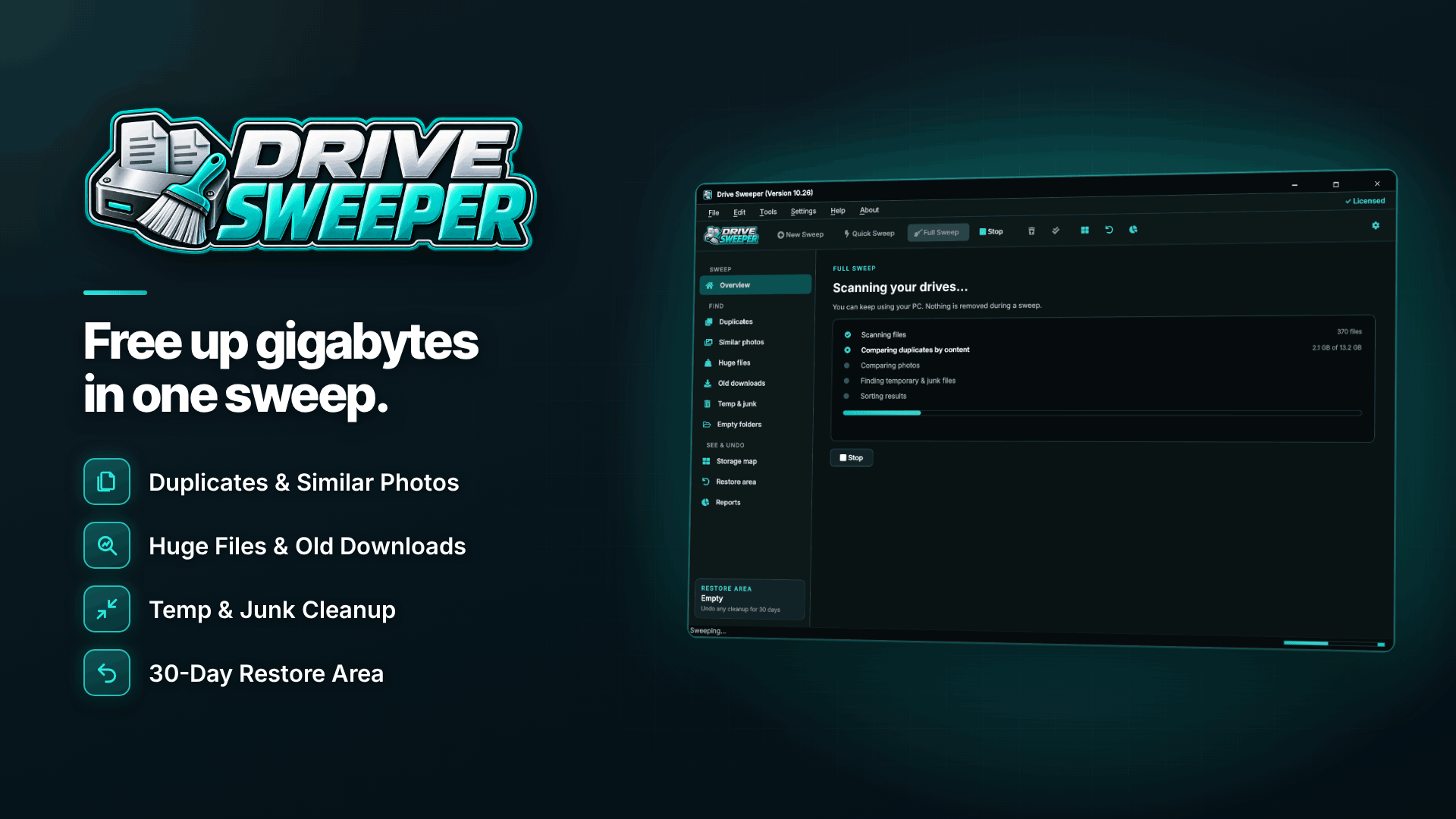
| Tool | What it looks for | Typical win on an affiliate laptop |
|---|---|---|
| Duplicate finder | Files with identical contents, even if renamed; identical folders | Repeated downloads of the same creative packs, site backups copied twice |
| Similar photos | Resized copies, other formats, near-identical burst shots, with a suggested best shot | Banner and screenshot variants |
| Huge files and old downloads | Large files and installers not opened in months, biggest first, with last-opened date | Old video tutorials, ISO images, forgotten installers |
| Junk and empty folders | Windows temp files, update leftovers, browser caches, crash dumps, old logs, empty folders from uninstalled programs | Several gigabytes on a machine that has never been cleaned |
| Storage map | Folders drawn as blocks sized by space, with zoom, breadcrumbs and space by file type | Spotting the one folder that ate the drive |
It runs on Windows 10 and 11 and scans internal and external drives, USB sticks and network folders, including duplicate detection across them. Online-only OneDrive and Dropbox files are never downloaded during a scan, which matters on a small SSD.
How Drive Sweeper keeps a clean-up safe
The safeguards are the main reason to choose Drive Sweeper over deleting things by hand:
- Never system or program files. Windows and program files are never selected.
- Never the last copy. When it removes duplicates, at least one copy always stays. You can also keep one copy and replace the others with links, and hard links are counted once.
- Safe, Review and Keep groups. Results are sorted by confidence, safe picks are pre-ticked, and nothing is removed until you approve it.
- Hands off files in use. Files that changed since the scan or are open in another program are left alone and listed.
- 30-day undo. Removed files go to a restore area and can be restored in one click, or you can free the space immediately if you need it now.
- Exclusion list. Keep backup drives, client folders or anything else out of every scan.
Clear about its limits: it frees disk space and shows where it went. It does not clean the registry, does not make speed claims, and does not re-encode or compress videos.
How do you free up space on a 256 GB SSD?
A practical order of work for a small laptop drive, from safest to most involved:
- Clear junk. Temp files, caches, update leftovers and crash dumps. Low risk, quick gain.
- Check old downloads. Installers and downloads not opened in months can usually go.
- Remove exact duplicates. Review the groups and approve.
- Use the storage map. Look for one or two folders that are far bigger than expected, such as an old project, a video export folder or a local copy of a site.
- Move rather than delete. Archives you still need belong on an external drive or NAS, not on a 256 GB system SSD.
- Make online-only files work for you. If you use OneDrive or Dropbox, setting rarely used folders to online-only frees local space without deleting anything.
For video-heavy machines, our guide to finding large video files on a PC goes further, and creators sorting shoot folders should see how to find and delete duplicate photos and videos.
Can you schedule automatic disk clean-up?
Yes. Storage Sense covers temp files and the Recycle Bin. Drive Sweeper adds scheduled weekly or monthly sweeps and low drive space warnings, so a shared office PC does not run out of room unnoticed. Reports of space freed per clean-up and drive usage over time can be exported as HTML or CSV, which is handy if you look after several machines and want a record. If you are automating other routine work, our guide to affiliate marketing automation covers the bigger picture.
Who is it best suited to?
- Affiliates on small-SSD laptops who download creatives, reports and screenshots daily.
- Site owners running a portfolio with local copies of several sites; see building an affiliate site portfolio.
- Small offices with shared PCs that need a predictable, reviewable clean-up rather than ad hoc deleting.
If your problem is speed rather than space, a cleaner is the wrong tool. Check startup apps, drive health and available memory instead.
Frequently asked questions
Is Disk Cleanup still in Windows 11?
The classic Disk Cleanup utility is still available, but Windows 11 steers users to Storage settings and Storage Sense for clearing temporary files, which do the same core job. Neither finds duplicates or similar photos.
Is it safe to delete duplicate files?
Yes, as long as one copy is kept, you are not deleting copies that exist on purpose (such as backups), and you have an undo. Exclude backup locations before scanning.
Will a disk cleaner speed up my PC?
Freeing space helps when a drive is nearly full, because Windows needs room for updates and temporary files. Beyond that, a space cleaner should not be expected to make a PC faster.
Next steps
For other tools worth having on an affiliate's PC, see our roundup of the best affiliate marketing tools. To clear space without risking your files, run a scan with Drive Sweeper, approve the Safe group and keep the 30-day undo until you are sure.