The best Windows boot repair software is the one that diagnoses the problem in plain language, backs up your boot files before it changes anything, runs from a USB stick when Windows won't load, and lets you undo a repair. Boot Restorer is built around exactly that: it backs up the files Windows uses to start, then repairs or restores them so a PC that won't boot can start again without reinstalling Windows. It doesn't fix hardware, and it works best if you set it up before anything goes wrong.
If you run an affiliate business from one or two Windows PCs, a machine that won't start means missed campaign checks, stalled content and a scramble for passwords. This article looks at what boot repair software should do, how this tool fits a webmaster's continuity kit and where its limits are.
What should you look for in Windows boot repair software?
Boot problems are narrow but nasty. The firmware can't find boot files, the Boot Configuration Data (BCD) is damaged, the boot record is overwritten or Windows loops through automatic repair. Windows' own Recovery Environment and command-line tools such as bootrec and bcdboot can fix many of these, but they assume you know which command fits which fault and they offer no undo.
A good tool should give you:
- Clear diagnosis that tells you what is wrong before suggesting a fix.
- Backups before repairs, so a fix can be reversed.
- Offline rescue media that works when Windows doesn't.
- Support for UEFI and legacy BIOS, because many small offices still have a mix.
- Honesty about hardware: if the drive is dying, the software should say so rather than "repairing" it.
- Records of what was done, useful if you look after more than one PC.
What can Boot Restorer do?
Here is how its features line up against those criteria.
Guided diagnosis
The guided "PC won't start" mode checks the boot configuration (BCD), the EFI and boot manager files, the boot records and the startup files, then explains the problem in plain English. Advanced tools are there if you prefer to choose the repair yourself.
Repairs for the common boot errors
- Rebuilds a missing or damaged BCD and repairs EFI system partition boot files, including after cloning Windows to a new SSD.
- Rebuilds the master boot record (MBR) and boot sector on BIOS PCs.
- Repairs damaged startup files, stops "Preparing Automatic Repair" loops, rolls back unfinished updates and starts Windows in safe mode so a bad driver can be removed.
- Detects each Windows installation on UEFI or BIOS PCs and adds missing ones to the boot menu.
The errors it addresses include "Boot configuration data is missing", "No bootable device", "Operating system not found", automatic repair loops, a black screen after the logo and Windows missing from the boot menu.
Backup and one-click undo
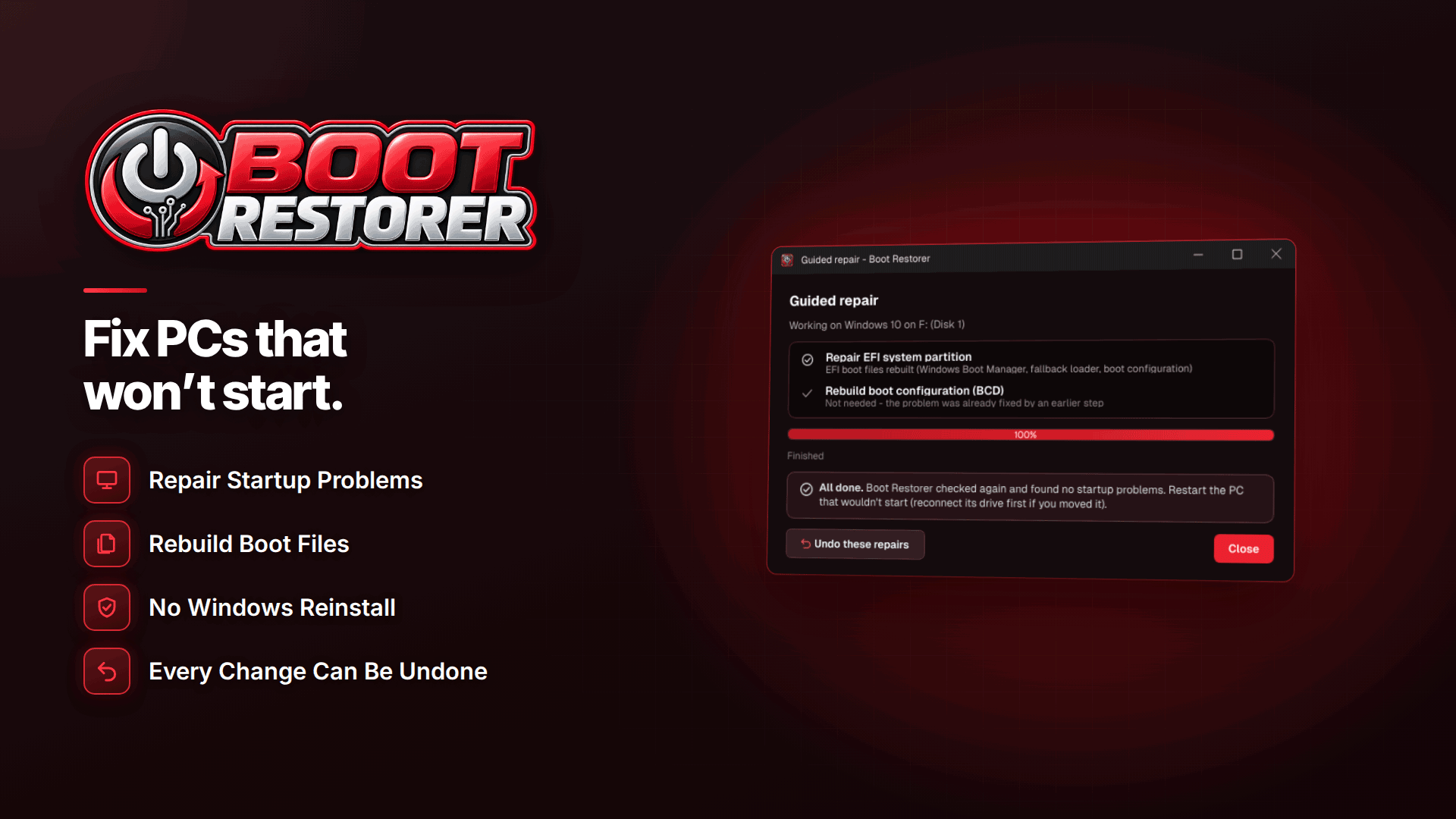
You can back up boot configuration, EFI and boot manager files, and boot records while the PC is healthy. Each repair also saves a backup first, so you can undo it in one click.
The Windows recovery USB: your offline safety net
The feature that matters most when the screen is black is the recovery USB. It contains your boot backup, a rescue menu and the software itself, and it needs no internet. You run it from Windows' recovery Command Prompt or from a Windows installation USB by launching BOOTRESTORER.CMD.
The rescue menu repairs Windows 7, 8, 8.1, 10 and 11, including PCs where the program was never installed. That makes one USB useful across an older backup machine and a newer main workstation. From the same menu you can copy documents and photos to USB before repairs, which is worth doing if your latest content drafts or exported reports live only on that machine.
For an affiliate, the practical value is speed. You aren't searching for a spare computer to download tools or reading forum threads about partition letters while campaigns run unchecked. Boot Restorer on a labelled USB stick, made on a working PC, turns a lost day into a short interruption.
Can you fix a PC that won't boot without reinstalling Windows?
In most software-caused cases, yes. A reinstall wipes your installed programs and their settings: tracking dashboards' desktop helpers, FTP profiles, browser sessions, editor configurations. Repairing the boot files keeps all of that. The vendor states that the tool only repairs the files Windows uses to start, and that your files and programs are not touched.
A reinstall becomes the answer only when Windows itself is badly damaged beyond its startup files, and even then you'd want to copy your data off first.
Dual-boot editing and repair reports
Some webmasters keep a second Windows installation for testing, or a separate clean install for banking and admin. The boot menu editor handles dual-boot PCs with multiple Windows installations, so you can tidy entries or restore a missing one rather than wrestling with command-line BCD edits.
The software also saves repair reports. If a contractor or virtual assistant looks after your machines, a report gives you a record of what was found and fixed, which is useful when the same fault comes back.
What it doesn't do
An honest review should be clear about the limits:
| It does | It doesn't |
|---|---|
| Repair BCD, EFI boot files, MBR, boot sector and startup files | Fix hardware faults or a dying drive |
| Back up boot files and undo repairs | Back up your documents, sites or databases in general |
| Run offline from a recovery USB | Install on 32-bit Windows (it runs on 64-bit Windows 10 and 11) |
| Copy documents and photos to USB before repairs | Replace a proper backup routine |
If the drive isn't detected, it reports a likely hardware or connection issue rather than attempting a repair. Repairs also depend on having a backup or the clean boot files Windows keeps, which is why preparing in advance is strongly recommended.
On activation: scanning and diagnosing work before you activate it, while backup, restore, repair, the recovery USB and file copying need an installation key. The standard licence covers your own computers; repairing customers' PCs needs a technician licence.
Where it fits in a webmaster's continuity kit
Boot repair is one layer. A realistic continuity plan for a small affiliate operation looks like this:
- Boot backup and recovery USB for each Windows PC, refreshed after major changes such as a new SSD.
- File and site backups held separately, including offsite copies.
- Password manager and two-factor recovery codes stored so you can sign in from another device.
- A second device that can reach your network dashboards if the main PC is out of action.
- A written checklist so you aren't improvising under pressure.
Our guide to the essential affiliate marketing tool stack covers the wider toolkit, and if you run several properties, the advice on building a portfolio of affiliate websites explains why single points of failure grow as you scale.
Frequently asked questions
Do I need to install it before my PC breaks?
Not strictly, because the rescue menu can repair PCs where it was never installed. But making a boot backup and recovery USB on a working PC first gives repairs the best chance.
Does it work on UEFI and older BIOS PCs?
Yes. It detects Windows installations on both and includes MBR and boot sector repair for BIOS machines.
Will it touch my files or programs?
The vendor says it only repairs the files Windows uses to start. It can also copy documents and photos to USB before a repair as an extra precaution.
Can I use it on clients' computers?
The standard licence covers your own computers. Working on customers' PCs requires a technician licence.
Next steps
If you're already automating parts of your business, as described in our guide to affiliate marketing automation, add a quarterly "test the recovery USB" reminder to the list. You can compare related utilities in the webmaster software and services directory. When you're ready, set up Boot Restorer on each work PC while it still starts normally.